Start your first conversation
The CometChat UI Kit for React Native bundles ready-made components for conversations, chat screens, calls, theming, and localization so you can ship messaging quickly.
Prerequisites
- Create a CometChat app in the CometChat Dashboard.
- Copy your App ID, Region, and Auth Key/Auth Token from Application → Credentials.
- React Native environment set up (Android Studio + Xcode for CLI, or Expo CLI).
Users in the same CometChat app can chat across platforms (web, Android, iOS, React Native).
Getting Started
Step 1: Create a project
npx @react-native-community/cli init ChattingApp
UI Kit v5 is tested with React Native 0.77.0+ (latest stable). Older versions may work but are not supported.
npx create-expo-app ChattingApp
Step 2: Install dependencies
Install the UI Kit (includes the Chat SDK):
npm install @cometchat/chat-uikit-react-native @cometchat/chat-sdk-react-native
yarn add @cometchat/chat-uikit-react-native @cometchat/chat-sdk-react-native
npm install @react-native-community/datetimepicker @react-native-clipboard/clipboard @react-native-async-storage/async-storage react-native-svg react-native-video dayjs
For a tab-based layout, also install navigation: @react-navigation/native @react-navigation/stack @react-navigation/bottom-tabs react-native-safe-area-context react-native-screens.
Step 3: Android permissions
Add camera/mic/network permissions to android/app/src/main/AndroidManifest.xml:
<uses-permission android:name="android.permission.INTERNET" />
<uses-permission android:name="android.permission.CAMERA" />
<uses-permission android:name="android.permission.RECORD_AUDIO" />
<uses-permission android:name="android.permission.VIBRATE" />
Step 4: Initialize the UI Kit
Call CometChatUIKit.init once on app start. On Android, request camera/mic permissions before calling init.
// App.tsx
import { useEffect } from "react";
import { PermissionsAndroid, Platform } from "react-native";
import { CometChatUIKit, UIKitSettings } from "@cometchat/chat-uikit-react-native";
import { CometChat } from "@cometchat/chat-sdk-react-native";

const UIKIT_SETTINGS: UIKitSettings = {
  appId: "APP_ID",
  authKey: "AUTH_KEY", // Use Auth Token in production
  region: "REGION",
  subscriptionType: CometChat.AppSettings.SUBSCRIPTION_TYPE_ALL_USERS,
};

export default function App() {
  useEffect(() => {
    const init = async () => {
      if (Platform.OS === "android") {
        await PermissionsAndroid.requestMultiple([
          PermissionsAndroid.PERMISSIONS.CAMERA,
          PermissionsAndroid.PERMISSIONS.RECORD_AUDIO,
        ]);
      }
      await CometChatUIKit.init(UIKIT_SETTINGS);
      console.log("CometChat UI Kit initialized");
    };
    init();
  }, []);

  return null; // render navigators/screens after login
}
Step 5: Log in a user
Use a UID you created in the dashboard or via SDK/API.
import { CometChatUIKit } from "@cometchat/chat-uikit-react-native";

const UID = "cometchat-uid-1"; // replace with your UID

CometChatUIKit.getLoggedInUser().then((user) => {
  if (!user) {
    CometChatUIKit.login({ uid: UID })
      .then(() => {
        console.log("Login Successful");
        // Render your app screens here
      })
      .catch((error) => console.error("Login failed:", error));
  }
});
Step 6: Choose a chat experience
Pick the layout that matches your UX:
Optional: Calling support
-
Install the Calls SDK (v3+):
npm install @cometchat/calls-sdk-react-native
-
Install required dependencies:
npm install @cometchat/chat-sdk-react-native @react-native-async-storage/async-storage @react-native-community/netinfo react-native-background-timer react-native-callstats react-native-webrtc
-
Add permissions
Android
<uses-permission android:name="android.permission.INTERNET" />
<uses-permission android:name="android.permission.CAMERA" />
<uses-permission android:name="android.permission.MODIFY_AUDIO_SETTINGS" />
<uses-permission android:name="android.permission.RECORD_AUDIO" />
<uses-permission android:name="android.permission.ACCESS_NETWORK_STATE" />
<key>NSCameraUsageDescription</key>
<string>Camera permission</string>
<key>NSMicrophoneUsageDescription</key>
<string>Microphone permission</string>
Step 3
Initialise CometChatUIKit
To integrate and run CometChat UI Kit in your app, you need to initialize it beforehand.
The Init method initializes the settings required for CometChat. Please ensure to call this method before invoking any other methods from CometChat UI Kit or CometChat SDK.
The Auth Key is an optional property of the UIKitSettings Class. It is intended for use primarily during proof-of-concept (POC) development or in the early stages of application development. You can use the Auth Token method to log in securely. import React, { useEffect } from "react";
import {
CometChatUIKit,
UIKitSettings,
} from "@cometchat/chat-uikit-react-native";
import { CometChat } from "@cometchat/chat-sdk-react-native";
useEffect(() => {
let uikitSettings: UIKitSettings = {
appId: "Enter your App ID here", // Replace with your CometChat App ID
authKey: "Enter your Auth Key here", // Replace with your App Auth Key
region: "Enter your App Region here", // e.g., "us", "in"
subscriptionType: CometChat.AppSettings
.SUBSCRIPTION_TYPE_ALL_USERS as UIKitSettings["subscriptionType"],
};
CometChatUIKit.init(uikitSettings)
.then(() => {
console.log("CometChatUiKit successfully initialized");
})
.catch((error) => {
console.log("Initialization failed with exception:", error);
});
}, []);
Login User
For login, you require a UID. You can create your own users on the CometChat Dashboard or via API. We have pre-generated test users: cometchat-uid-1, cometchat-uid-2, cometchat-uid-3, cometchat-uid-4, cometchat-uid-5.
The Login method returns the User object containing all the information of the logged-in user.
This straightforward authentication method is ideal for proof-of-concept (POC) development or during the early stages of application development. For production environments, however, we strongly recommend using an Auth Token instead of an Auth Key to ensure enhanced security. // Replace with the actual user ID you want to log in
const uid = "<YOUR_USER_UID>";
// Login user with CometChatUIKit
CometChatUIKit.login({ uid })
.then((user) => {
// Login successful
console.log(`User logged in successfully: ${user.getName()}`);
})
.catch((error) => {
// Handle login error
console.error("Login failed with error:", error);
});
Step 5
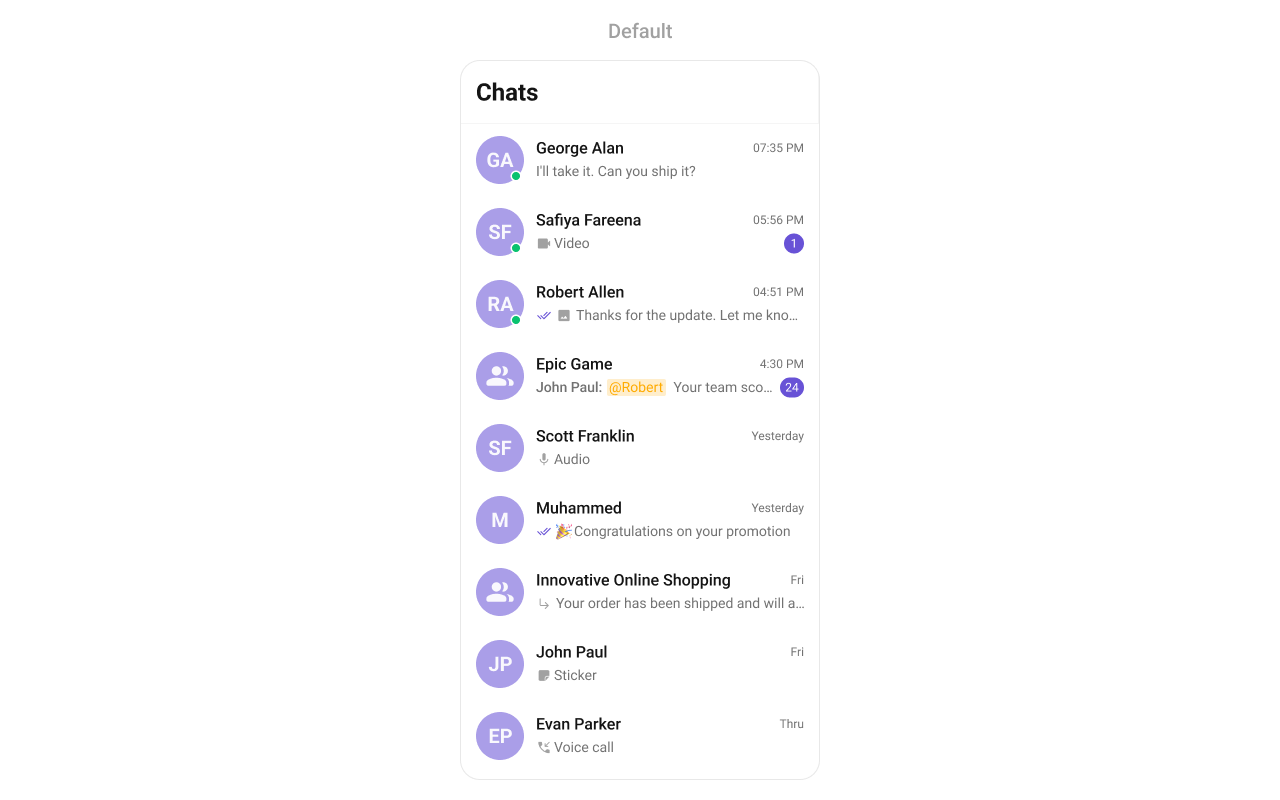
Render Conversations with Messages
Loading the Conversations Component
import React, { useEffect, useState } from "react";
import { SafeAreaView, ViewStyle } from "react-native";
import {
  CometChatConversations,
  CometChatUIKit,
  CometChatUiKitConstants,
  UIKitSettings,
  CometChatThemeProvider,
} from "@cometchat/chat-uikit-react-native";
import { CometChat } from "@cometchat/chat-sdk-react-native";

import Messages from "./src/components/Messages";

/* -------------------------------------------------------------------------- */
/*  ⚙️  Replace the placeholders below with your own CometChat credentials.    */
/* -------------------------------------------------------------------------- */
const APP_ID = "<APP_ID>"; // e.g. "123456abc"
const AUTH_KEY = "<AUTH_KEY>"; // e.g. "0b1c2d3e4f5g6h7i8j9k"
const REGION = "<REGION>"; // e.g. "us" | "eu" | "in"
const DEMO_UID = "<UID>"; // e.g. "john_doe"
/* -------------------------------------------------------------------------- */

/**
 * App
 * ---
 * The root component:
 *  1. Initializes the CometChat UI Kit.
 *  2. Logs a demo user in.
 *  3. Shows either the conversation list or an active chat screen.
 */
const App = (): React.ReactElement => {
  /* ------------------------------------------------------------------ */
  /* Local state                                                         */
  /* ------------------------------------------------------------------ */
  const [loggedIn, setLoggedIn] = useState(false);
  const [messageUser, setMessageUser] = useState<CometChat.User>();
  const [messageGroup, setMessageGroup] = useState<CometChat.Group>();

  /* ------------------------------------------------------------------ */
  /* One-time initialization                                             */
  /* ------------------------------------------------------------------ */
  useEffect(() => {
    const init = async () => {
      // 1️⃣  Configure the UI Kit.
      const uiKitSettings: UIKitSettings = {
        appId: APP_ID,
        authKey: AUTH_KEY,
        region: REGION,
        subscriptionType: CometChat.AppSettings
          .SUBSCRIPTION_TYPE_ALL_USERS as UIKitSettings["subscriptionType"],
      };

      try {
        await CometChatUIKit.init(uiKitSettings);
        console.log("[CometChatUIKit] initialized");

        // 2️⃣  Login.
        await CometChatUIKit.login({ uid: DEMO_UID });
        setLoggedIn(true);
      } catch (err) {
        console.error("[CometChatUIKit] init/login error", err);
      }
    };

    init();
  }, []);

  /* ------------------------------------------------------------------ */
  /* Render                                                              */
  /* ------------------------------------------------------------------ */
  return (
    <SafeAreaView style={styles.fullScreen}>
      <CometChatThemeProvider>
        {/* Show conversations only after the user is logged in */}
        {loggedIn && (
          <>
            {/* Conversation list (hidden when a chat is open) */}
            <CometChatConversations
              style={{
                containerStyle: {
                  display: messageUser || messageGroup ? "none" : "flex",
                },
              }}
              onItemPress={(conversation: CometChat.Conversation) => {
                if (
                  conversation.getConversationType() ===
                  CometChatUiKitConstants.ConversationTypeConstants.user
                ) {
                  setMessageUser(
                    conversation.getConversationWith() as CometChat.User
                  );
                  return;
                }
                setMessageGroup(
                  conversation.getConversationWith() as CometChat.Group
                );
              }}
            />

            {/* Active chat screen */}
            {(messageUser || messageGroup) && (
              <Messages
                user={messageUser}
                group={messageGroup}
                onBack={() => {
                  setMessageUser(undefined);
                  setMessageGroup(undefined);
                }}
              />
            )}
          </>
        )}
      </CometChatThemeProvider>
    </SafeAreaView>
  );
};

/* -------------------------------------------------------------------------- */
/* Styles                                                                     */
/* -------------------------------------------------------------------------- */
const styles: { fullScreen: ViewStyle } = {
  fullScreen: { flex: 1 },
};

export default App;
Loading the Messages Component
- The Messages component allows users to view and send messages in both one-on-one and group conversations.
import React from "react";
import { View, StyleSheet } from "react-native";
import {
  CometChatMessageHeader,
  CometChatMessageList,
  CometChatMessageComposer,
} from "@cometchat/chat-uikit-react-native";
import { CometChat } from "@cometchat/chat-sdk-react-native";

/**
 * Messages
 * --------
 * A self-contained chat screen that combines the **CometChatMessageHeader**, **CometChatMessageList**,
 * and **CometChatMessageComposer** provided by the CometChat React-Native UI Kit.
 *
 * Props
 * -----
 * • `user`  – (CometChat.User, optional) Target user for a 1-to-1 conversation.
 * • `group` – (CometChat.Group, optional) Target group for a group conversation.
 * • `onBack`— () ⇒ void Callback fired when the back button in the header is pressed.
 *
 */
const Messages = ({
  user,
  group,
  onBack,
}: {
  user?: CometChat.User;
  group?: CometChat.Group;
  onBack: () => void;
}) => {
  return (
    <View /* root container fills the entire screen */ style={styles.root}>
      {/* Top bar: avatar, name & back button */}
      <CometChatMessageHeader
        user={user}
        group={group}
        onBack={onBack}
        showBackButton
      />

      {/* Scrollable list of chat messages */}
      <CometChatMessageList user={user} group={group} />

      {/* Input field + action buttons (emoji, attach, send, etc.) */}
      <CometChatMessageComposer user={user} group={group} />
    </View>
  );
};

const styles = StyleSheet.create({
  /** Ensures the component stretches to use all available space */
  root: {
    flex: 1,
  },
});

export default Messages;